OBS & streaming tech3 min read
How to lay out bilingual live captions without hiding the product
Design bilingual live captions around language hierarchy, line length, contrast, placement, and real mobile previews instead of the OBS canvas alone.
How to route audio in OBS, wire up a virtual audio cable, overlay bilingual subtitles with chroma key, and pick encoder settings for overseas viewers.
The technical difference between a normal stream and a cross-border stream is not the video. It is the number of audio paths.
A normal stream has one: the host speaks, the audience hears it. A cross-border stream has at least three:
These three go to different places, and OBS’s default audio model is “mix every input into one output”. Nearly every cross-border audio failure traces back to never having separated them.
Audio routing is the backbone. A virtual audio cable (VB-Cable on Windows, BlackHole on macOS) is essentially a software patch bay: it connects one application’s output to another application’s input without going through physical speakers and microphones. Once that model clicks, the rest follows.
Subtitle overlays come second. OBS has no native live captioning, so the standard approach is to have the translation tool render captions in a window with a solid background colour, capture that window in OBS, and key the colour out — OBS categorises Color Key as the filter for graphics and windows, and Chroma Key as the one for green screens and camera footage. Any program that can draw text becomes a subtitle source, at the cost of dealing with window capture scaling, DPI and capture methods.
Encoder settings come last. Your audience is on the other side of the world, so the delivery path is longer than a domestic stream and the bitrate and keyframe trade-offs differ.
If you are building this for the first time, work through it in this order so that each step is independently verifiable:
Do not tune all three at once. Failures in audio, subtitles and encoding impersonate each other — subtitle lag looks like slow translation when it is actually an oversized stream buffer.
Design bilingual live captions around language hierarchy, line length, contrast, placement, and real mobile previews instead of the OBS canvas alone.
Record host, translated speech, and programme mix on separate OBS tracks while retaining a complete track for ordinary playback and platform checks.
Trace silent translated playback across synthesis, virtual cable, OBS monitoring, stream tracks, and the platform instead of reinstalling blindly.
Use OBS sidechain compression to lower music during translated playback, with verified starting values, test order, and misrouting checks.
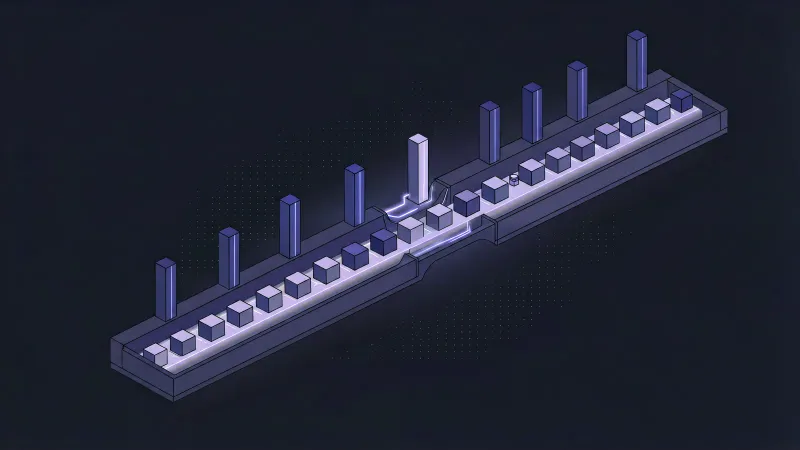
Encoder, bitrate, keyframe interval and sample rate: what to set, which official docs back each value, and why a translation pipeline changes it.

Overlaying bilingual live captions in OBS using window capture and a chroma key filter, including the green value, scaling, DPI and frame rate traps.
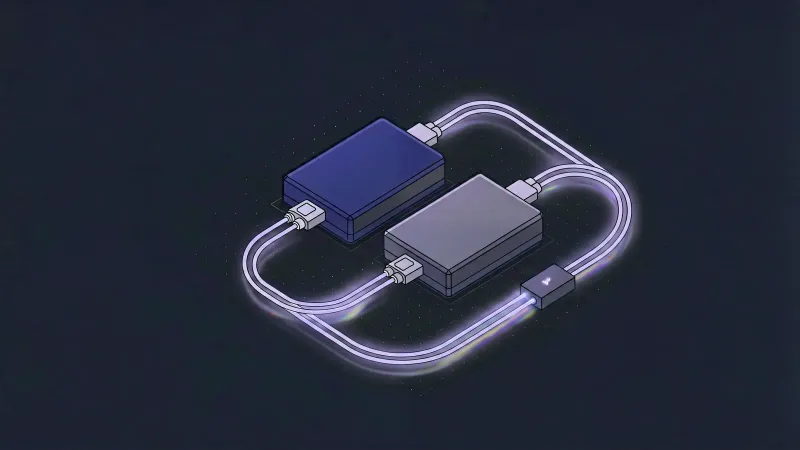
A step-by-step VB-Cable and BlackHole setup that routes translated speech into OBS while keeping the host's own monitoring path clean and echo-free.